
Content Hub
Overview
Nextcloud is an open-source content collaboration platform that institutions can run on their own servers or in the cloud. It gives teams one place to store, share and work on files while keeping control over where their data is hosted.
With the LearnWise integration, files stored in Nextcloud become knowledge for AI Campus Support, AI Student Tutor and AI Ops Assistant. An administrator connects Nextcloud and chooses which files each assistant can use. Answers then draw on documents the institution already maintains, such as policies, course materials and service guides.
How it works
- Connect your Nextcloud server
- Provide the server address, a Nextcloud username and an app password with access to the relevant files. Cloud and self-hosted instances are supported, provided LearnWise can reach the server.
- Select files for each assistant
- Under Knowledge → Applications, choose which Nextcloud files each assistant uses. Nothing is imported until an administrator selects it.
- Use your files across assistants
- AI Campus Support, AI Student Tutor and AI Ops Assistant answer using the files you selected.
Why Choose LearnWise?
This integration lets institutions that already rely on Nextcloud use those files as AI knowledge, with administrators deciding what each assistant can draw on.
- Supports cloud-hosted and self-hosted Nextcloud
- Works through your existing LearnWise Knowledge access and admin permissions, with no separate activation
- Servers reachable only inside a private campus network need a connectivity check before setup
See the setup guide for step-by-step instructions.

Unify and streamline your internal support processes.
Boost engagement and efficiency at your university by connecting all your essential EdTech tools to LearnWise.
Try it nowDownload the whitepaper
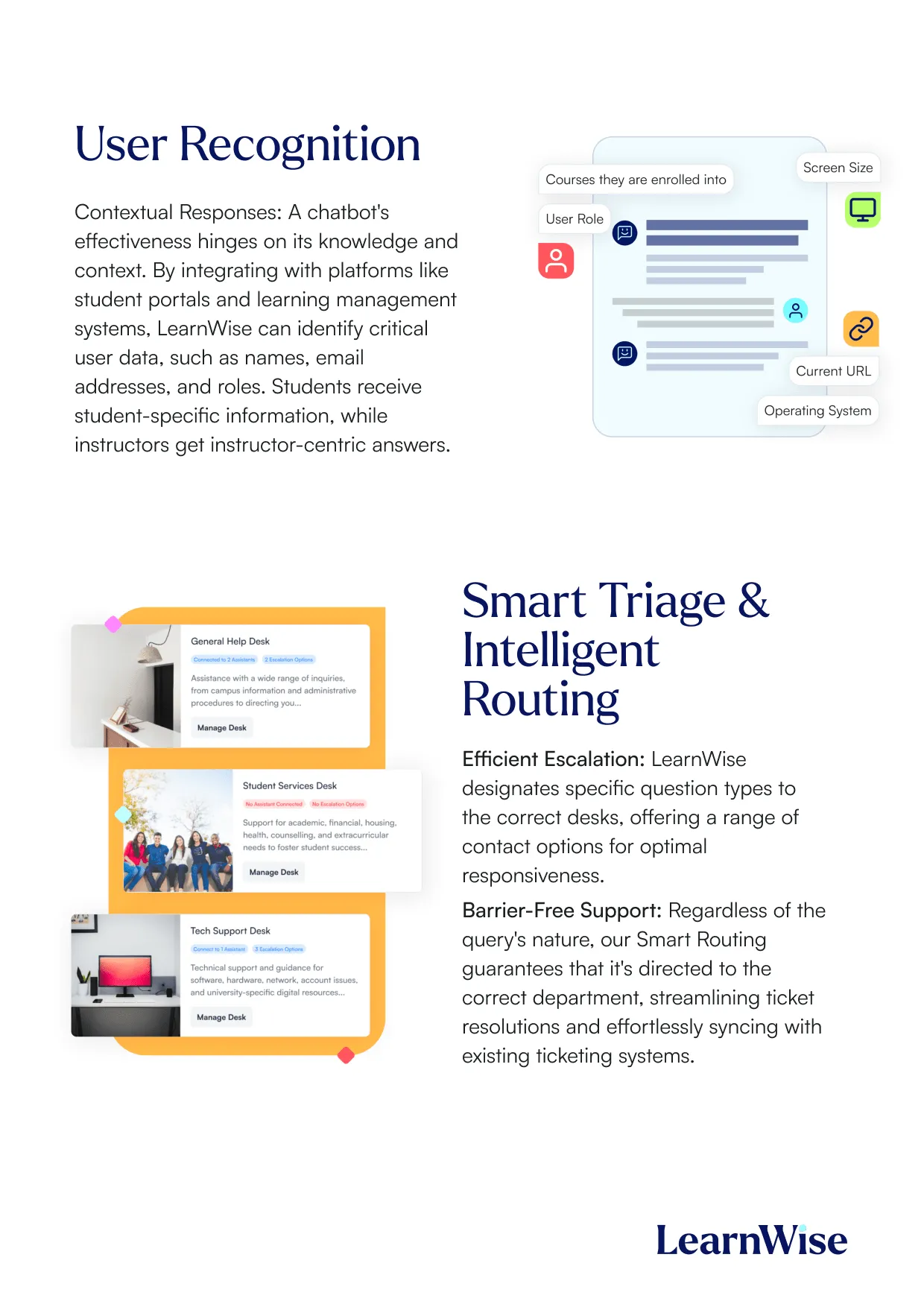
Explore our guide to learn how LearnWise AI works in your platform.
Get the whitepaperDownload the study
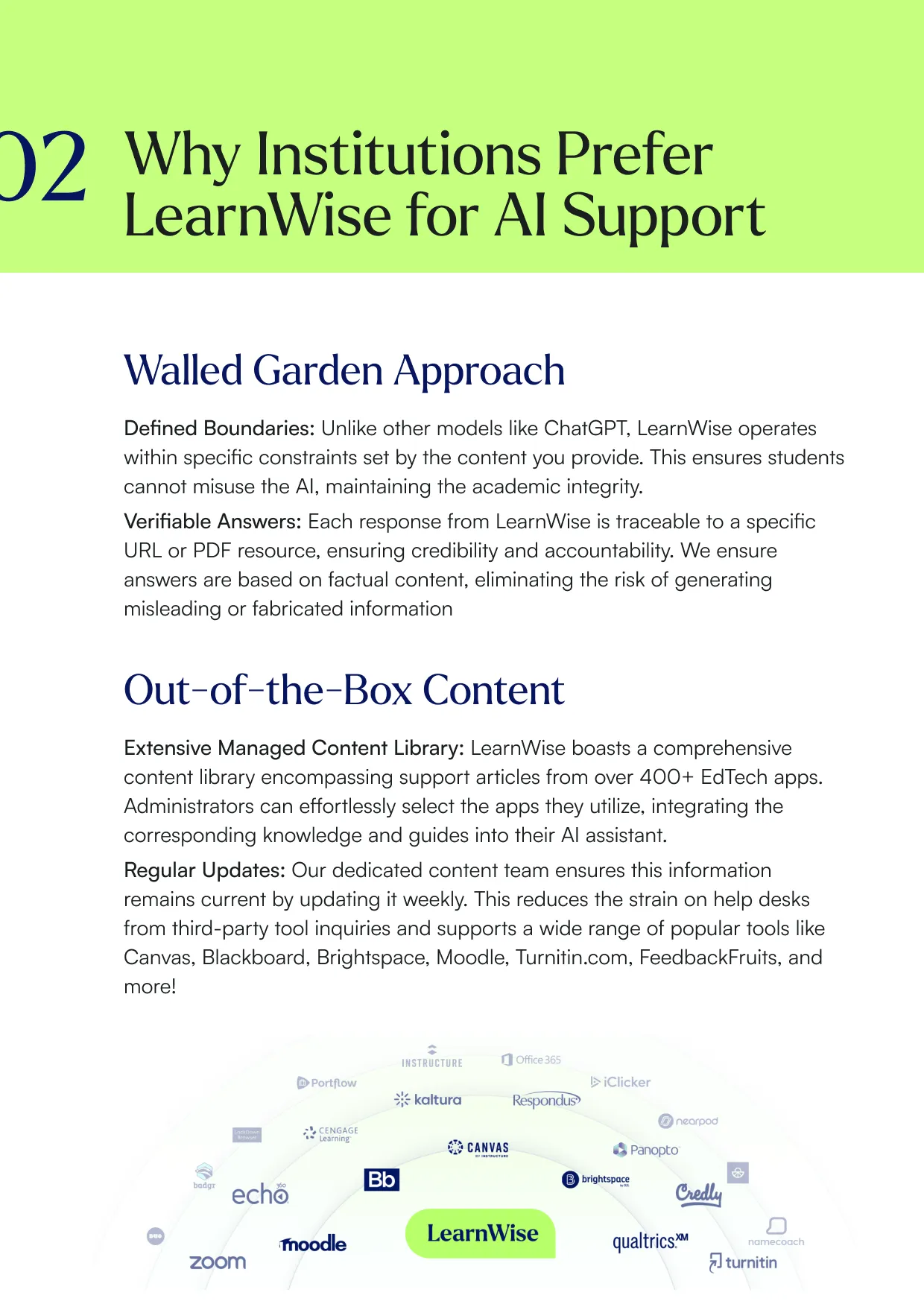
Learn why LearnWise is the best comprehensive AI support suite for institutions like yours.


Download the whitepaper
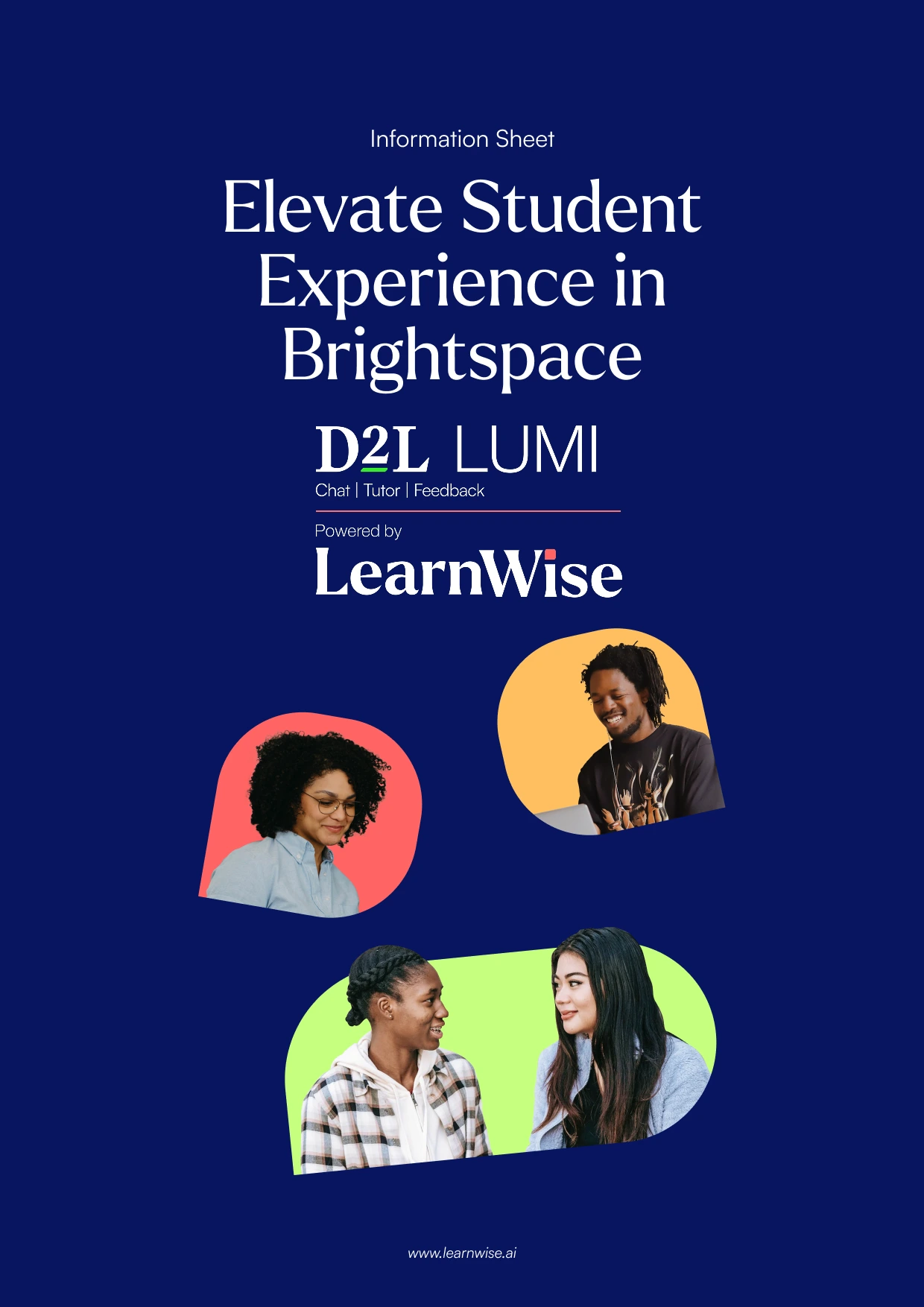
Explore our full integration guide to learn how LearnWise and D2L work together to streamline course delivery, support, and assessment.


Download the whitepaper
Explore our full integration guide to learn how LearnWise AI works in Blackboard to streamline support, teaching and learning.

Download the whitepaper
Explore our full integration guide to learn how LearnWise AI works in Microsoft Teams to streamline support and learning.
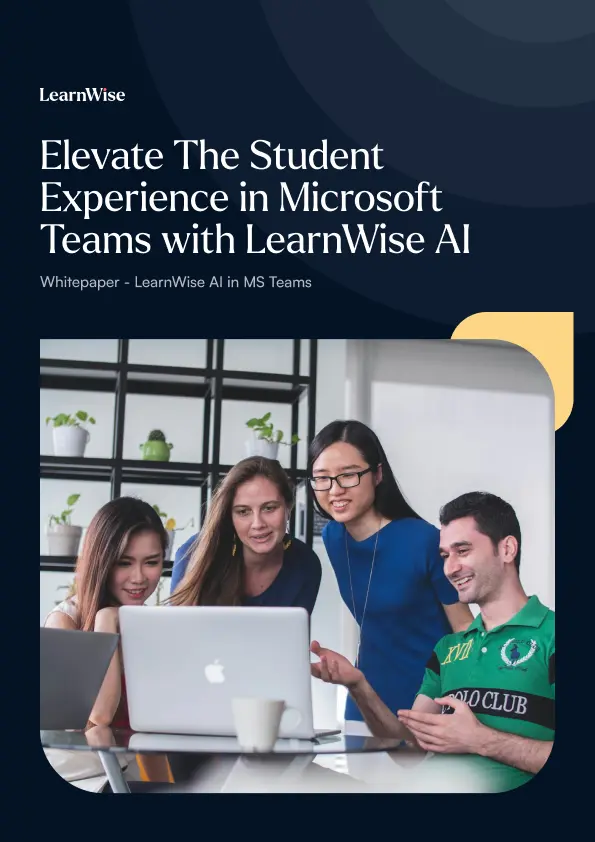
Download whitepaper
Explore our full integration guide to learn how LearnWise AI works in Moodle to streamline support, learning and assessment.

Download whitepaper
Explore our full integration guide to learn how LearnWise AI works in Moodle to streamline support, learning and assessment.

Download the whitepaper
Explore our full integration guide to learn how LearnWise and D2L work together to streamline course delivery, support, and assessment.
Download the whitepaper
Explore our full integration guide to learn how LearnWise AI works in Blackboard to streamline support, teaching and learning.
Download the whitepaper
Explore our full integration guide to learn how LearnWise AI works in Microsoft Teams to streamline support and learning.
Download whitepaper
Explore our full integration guide to learn how LearnWise AI works in Moodle to streamline support, learning and assessment.
FAQ
Common questions, answered.
How long is the product demo?


Most demos last between 30-45 minutes, with additional time available for questions, discussion, and platform-specific use cases.
Is the demo tailored to our institution?
Yes. We build the session around the products and use cases most relevant to you, with examples that reflect how your institution actually works rather than a generic walkthrough. Tell us your priorities in advance and we will focus the time there.
Who should attend the demo?
Bring whoever owns the problem you want to solve. That usually means a mix of the people who would use it day to day, such as LMS admins, student services, or faculty, plus someone who can speak to priorities and budget.
How quickly can LearnWise be implemented?
Faster than most institutions expect. Technical setup is typically 3 to 7 business days, with full onboarding in 3 to 5 weeks, and no coding is required. You can also roll out one product or one department at a time and expand from there.
Similar integration
See all



Kraanspoor 50, 1033 SE Amsterdam, Netherlands

